Merge, extract and split PDFs on your PC
In Warpstead a PDF opens on the canvas as a grid of pages, next to the folders and programs you're working with. You merge files by dragging pages from one PDF to another, and you split them by clicking between two pages. The files are handled on your PC: nothing goes up to a PDF website, and it works offline.
Merging
Drag pages from one PDF node to another and they're copied where you drop them. Hold Ctrl to move them instead. You can also drop a whole PDF from File Explorer or from a Folder node right between two pages. When the pages come from more than one file, each source gets a colour, so you can still tell where every page came from.
To merge files without opening them, select two or more PDFs in a Folder node and choose Merge into one PDF. They're joined in the order you see them into Merged.pdf, in the same folder.
Extracting and splitting
Select some pages and Extract makes a new PDF from them, named after the original and the pages you took (brief p3-5.pdf). Split cuts the file every 1, 2 or 4 pages, or wherever you click: move the mouse into the gap between two pages and a pair of scissors appears. A merged PDF can also go back into the files it came from. Until you press Create the cuts are only a preview, and Ctrl Z undoes them.
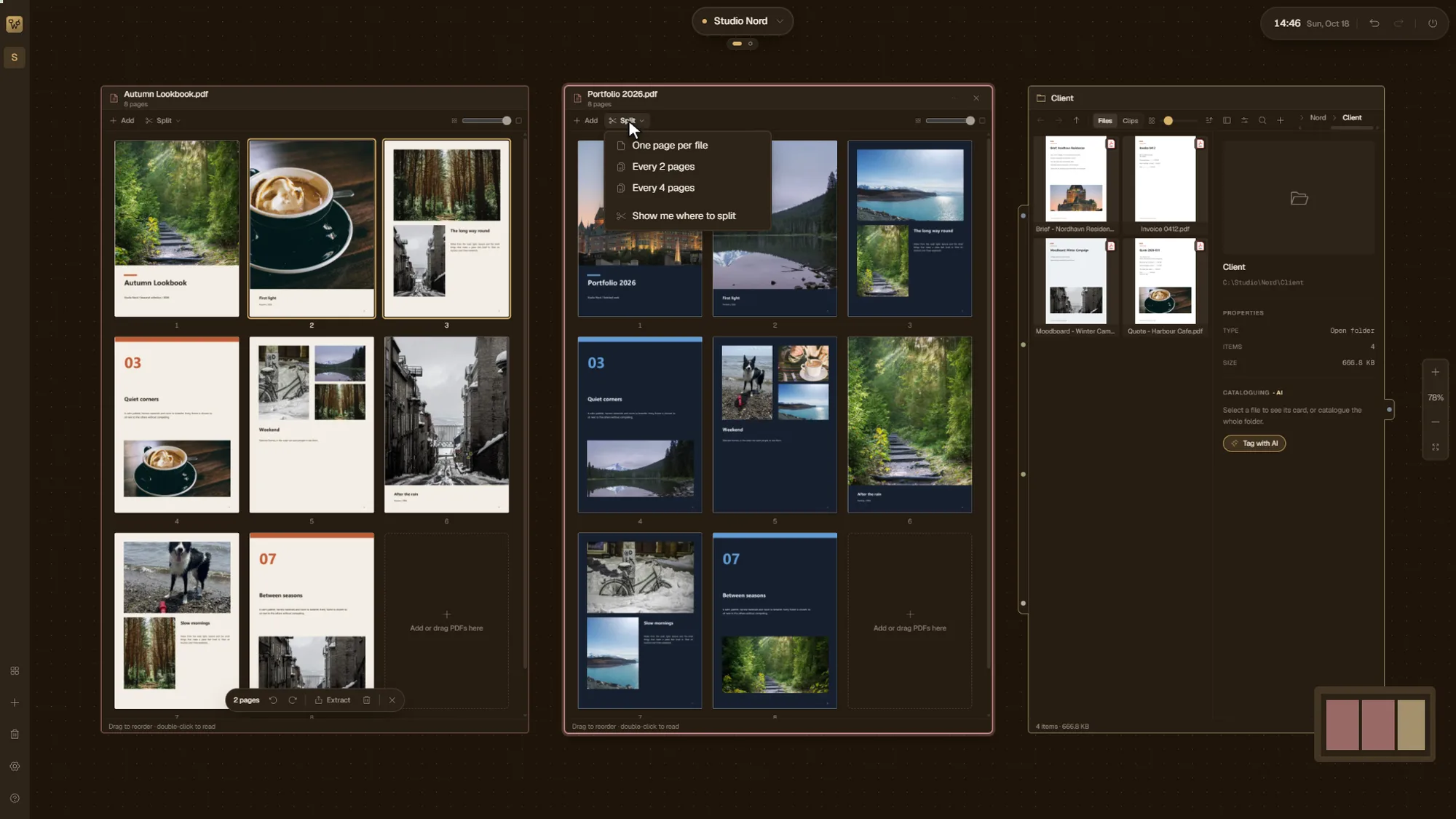
The new files open next to the original, which stays as it is. An existing file is never overwritten: the new one gets a (2) after its name.
Printing
Print, in the bar at the top of the node, or Ctrl P, opens the Windows print dialog. It prints the pages as you see them in the node, in that order and with their rotation, even if you haven't saved yet. Select some pages first and the dialog offers Selection to print only those. A page bigger than the paper is shrunk to fit, a smaller one prints at its real size, and a landscape page on a portrait sheet is turned.
What a PDF keeps
Click to select, drag to reorder, rotate or delete from the bar at the bottom, double-click to read with the wheel. When you save, the file keeps its bookmarks, links, form fields and PDF/X profile. A signed PDF is never rewritten without asking first.
Try it in your browser
On a computer you can try the PDF node here, before installing anything. Open the canvas with two PDF nodes: a sample brief, and an empty one where you can drop a PDF of your own. Drag pages between them, extract, split, rotate, print. Your file stays in the browser: the pages are rewritten there by PDFium, the same engine the app uses, so bookmarks and form fields survive the same way. Nothing is uploaded. When you save, a message offers the new file as a download, because the page keeps nothing once you close it.
Get it
The PDF tools are part of Warpstead, a canvas for everything you work with on Windows. The beta is free on the Microsoft Store until November 30, 2026, for Windows 10 (version 2004 or later) and Windows 11. What the beta includes, and what it costs after.