A web clipper that keeps the page's look
Warpstead has a browser on its canvas, the Web node, and the Web node has a Clip panel. It saves what you're reading into a single file on your disk, with the site's fonts, colours and layout. No account and no cloud: the clip is a .wsclip file in a folder you choose, and it stays readable without Warpstead (rename it to .zip and the content is inside as HTML and images).
What you can clip
- Article: the article as the site shows it, without menus and sidebars.
- Zone: parts of the page you pick with the mouse, one or several.
- Selection: the text you selected, with its images.
- Full page: the whole page with its fonts, plus a long screenshot.
- Screenshot, Images or a Bookmark.
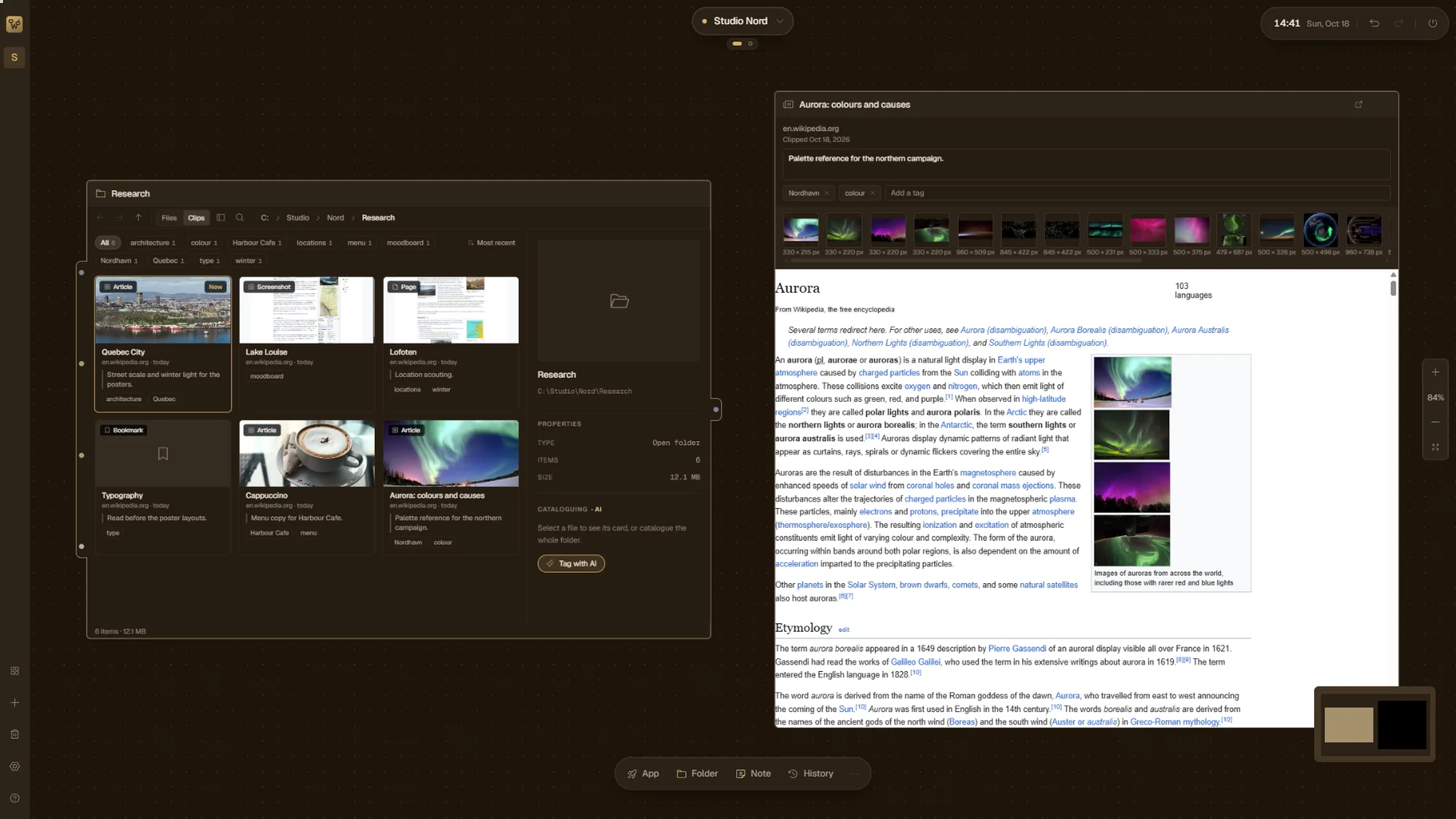
While the panel is open, the page itself shows what will go into the clip. You add a title, a note and tags before you save. Images are saved in the largest version Warpstead can find, so a Wikipedia thumbnail comes back as the original photo.
Finding them again
A Folder node on the canvas has a Clips view: cards with a preview, the site, the date, your note and tags. Tags filter the cards and Ctrl F searches titles, notes and text. Double-click a card and the clip opens in a Clip node next to the folder, where Original takes you back to the page, at the exact spot for a zone or a selection.
Taking them elsewhere
A clip exports to HTML with its images, to Markdown with a YAML header, to PDF, or as just the images. You can drag a single image out of a clip into File Explorer or another program.
Get it
Clipping is part of Warpstead, a canvas for everything you work with on Windows. The beta is free on the Microsoft Store until November 30, 2026, for Windows 10 (version 2004 or later) and Windows 11. What the beta includes, and what it costs after.